🎬 Ready to Start?
Your scene is empty. Get started by:
💡 Tip: Press ? for Help
Left Mouse: Rotate camera
Right Mouse: Pan camera
Scroll: Zoom in/out
Click Object: Select
Double-Click Camera: Open view
G Key: Move mode
T Key: Move mode
R Key: Rotate mode
S Key: Scale mode
M Key: Measure distance
Delete Key: Remove selected
💾 Auto-Save: Changes saved automatically
Select an object to view properties
Loading projectors...
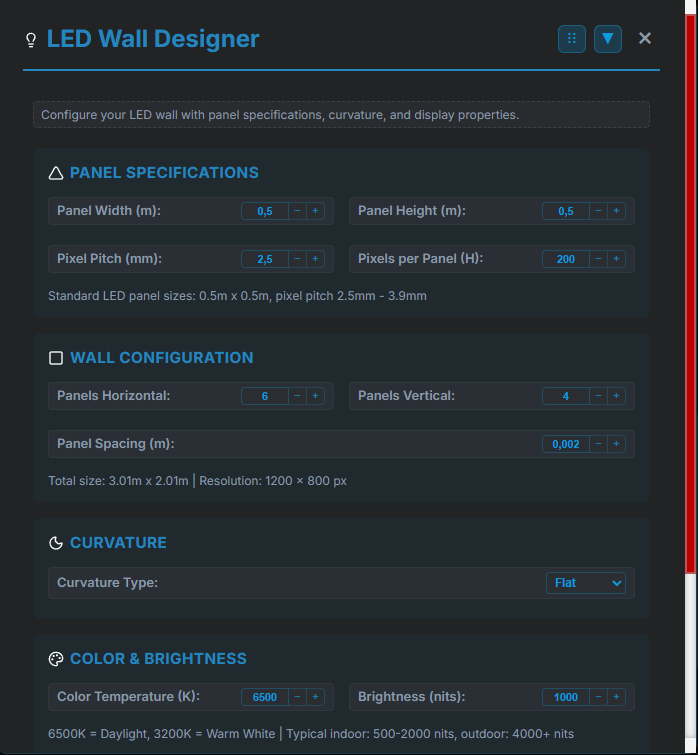
Configure your LED wall with panel specifications, curvature, and display properties.
Standard LED panel sizes: 0.5m x 0.5m, pixel pitch 2.5mm - 3.9mm
Total size: 3.0m x 2.0m | Resolution: 1200 x 800 px
6500K = Daylight, 3200K = Warm White | Typical indoor: 500-2000 nits, outdoor: 4000+ nits
Loading cameras...
Loading servers...
Save projects to the server with a custom name, or browse and load existing files.
Names are saved as JSON files on the server.
No projects saved yet.
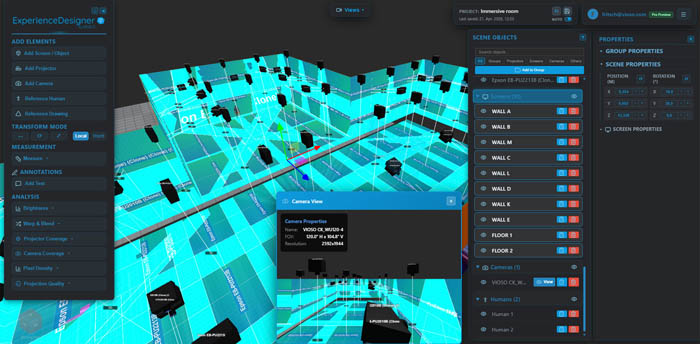
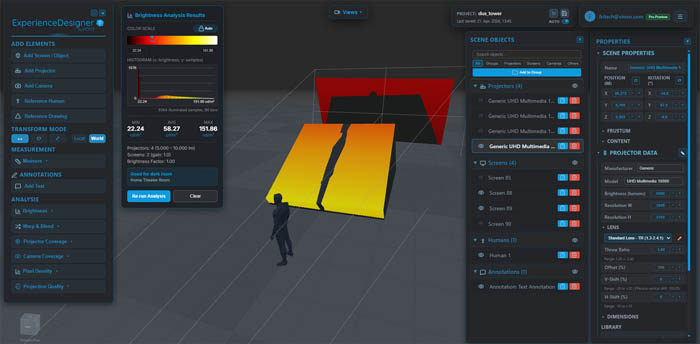
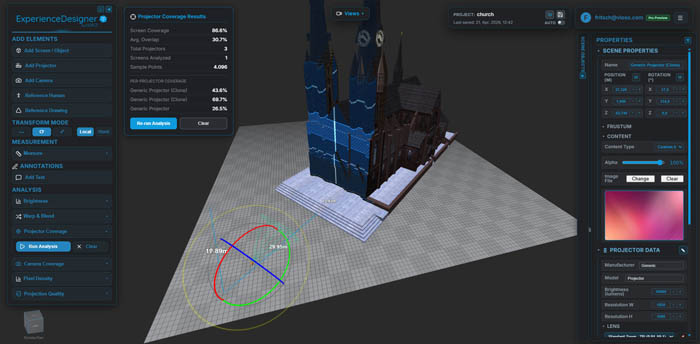
ScreenCraft helps you plan and visualize projection mapping setups in 3D. Add projectors, screens, and cameras to design your installation with realistic projective texture mapping.
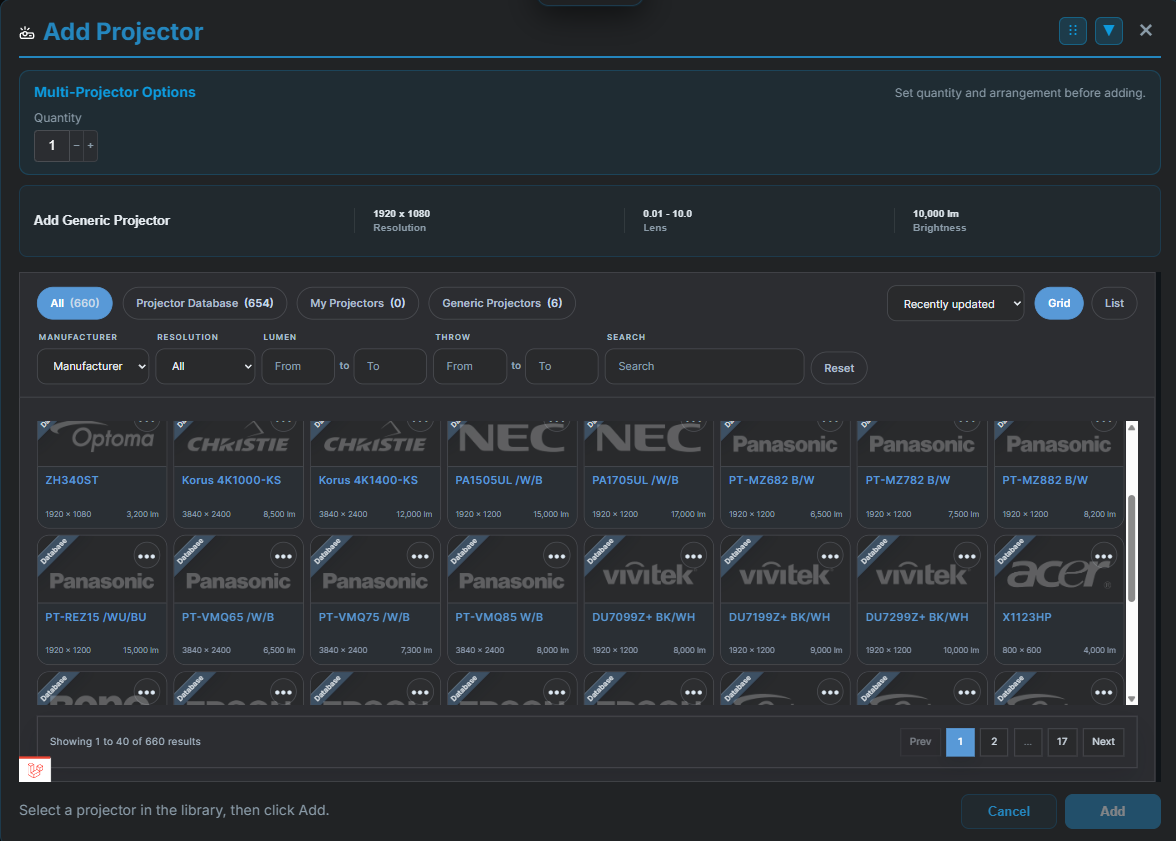
Click 📽️ Add Projector to open the Projector Library modal.
Library: Choose from 80+ professional projectors with accurate specs (brightness, resolution, throw ratios). Search, filter by manufacturer, and sort by various criteria.
Generic Projector: Click "⚡ Add Generic Projector" at the top of the library for a standard projector with customizable settings.
Projectors display as 3D objects with visual frustums showing their projection area.
Click 🎬 Screen / Surface to choose from different screen types:
Select any screen to adjust its properties in the Properties Panel (bottom-right).
Click 📷 Add Camera to open the Camera Library modal.
Library: Choose from 15+ professional cameras with accurate specifications. Search and filter by manufacturer.
Generic Camera: Click "🎥 Add Generic Camera" at the top of the library for a standard camera with default settings.
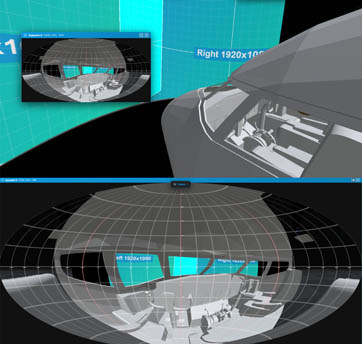
View Camera: Double-click any camera to see its perspective in a new window.
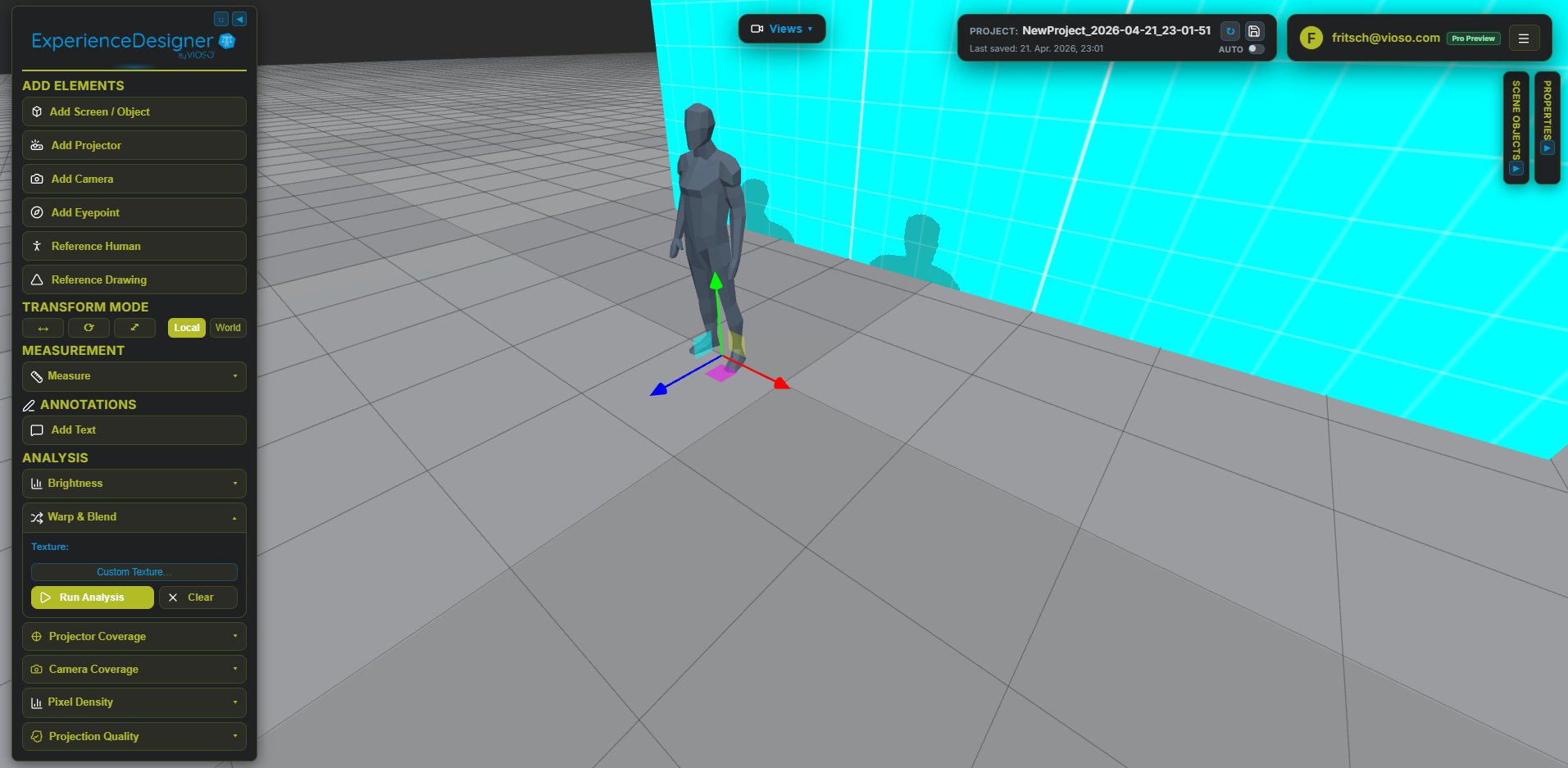
Click 🧍 Reference Human to add a human figure to your scene for scale reference.
This helps visualize the size and proportions of projectors, screens, and other equipment in relation to people.
Select any object, then use keyboard shortcuts:
Drag the colored arrows/handles on selected objects to transform along specific axes.
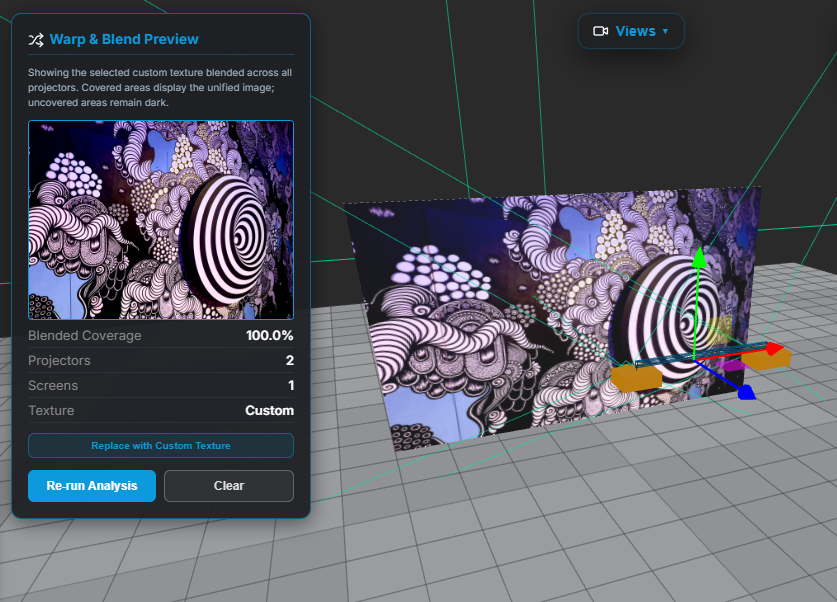
ScreenCraft features realistic projective texture mapping with perspective-correct warping. Projectors display test patterns on screens within their frustum range, helping you preview your setup before installation.
Auto-Save: Changes are automatically saved to browser storage.
Save Project: Save your scene with a custom name to the server.
Load Project: Browse and open previously saved projects.
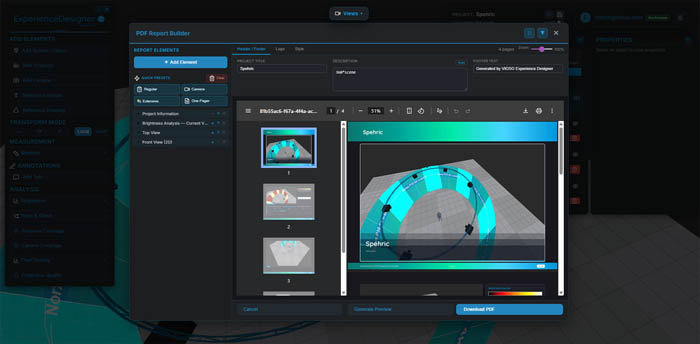
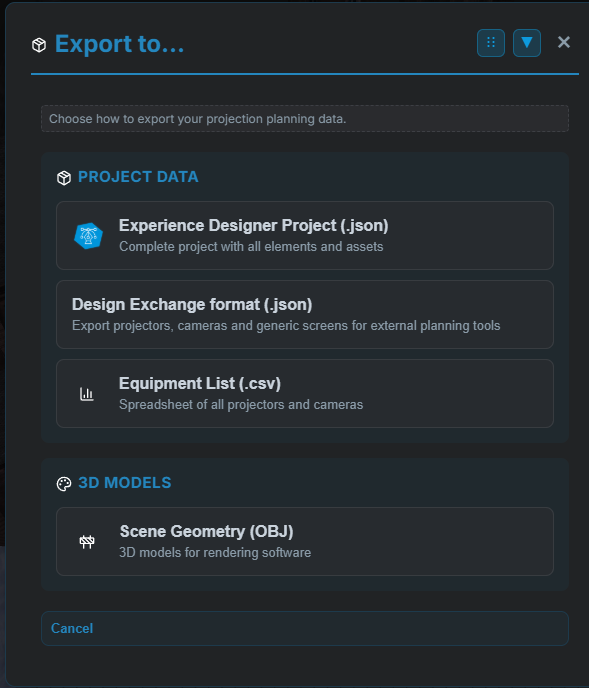
Export: Download as JSON or export equipment lists.
Press M or click Measure to measure distances in your scene. Click two points to see the distance in meters. Use Clear to remove measurements.
Select any screen or object to see its Properties Panel (bottom-right). Adjust dimensions, change screen types, and view position/rotation. All changes apply in real-time and auto-save.
Sales mode shows simplified properties, Engineer mode shows full technical details.
Changes are applied immediately and saved automatically.
Logo will be displayed as an overlay at the top of the screen. Recommended size: 300x100px or smaller.
Create a new project. This will clear the current scene and start fresh with a new project name and description.
The project name and description will be saved with your project and can be edited later.
Describe your projection setup and let the wizard automatically create an optimal layout for you.
How many projectors will you use? (1-8)
How far will the projectors be from the screen?
Select the brightness category for your projectors
Percentage of overlap between adjacent projectors (for edge blending)
Select the type of projection surface
Radius of the hemispherical dome
The wizard will automatically calculate optimal projector positions based on your inputs. You can adjust the layout after generation using the transform tools.
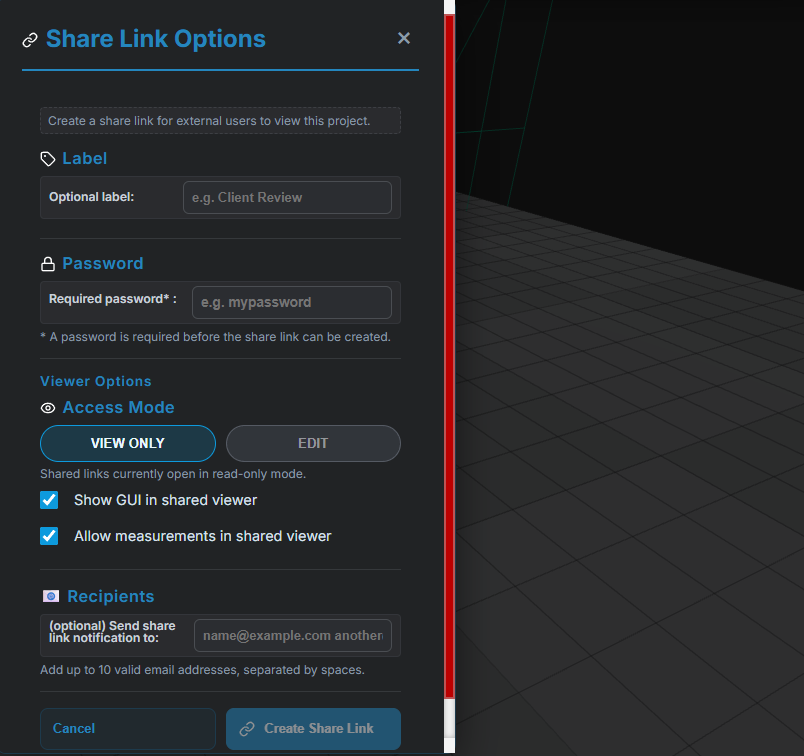
Share your design with the VIOSO team for expert review. We'll send a link to your project along with your comments.